Free Excel General Business Estimate Template
Simple, spreadsheet-based estimate template with built-in item library. Download instantly or use in Erro to create professional estimates with pre-populated pricing.
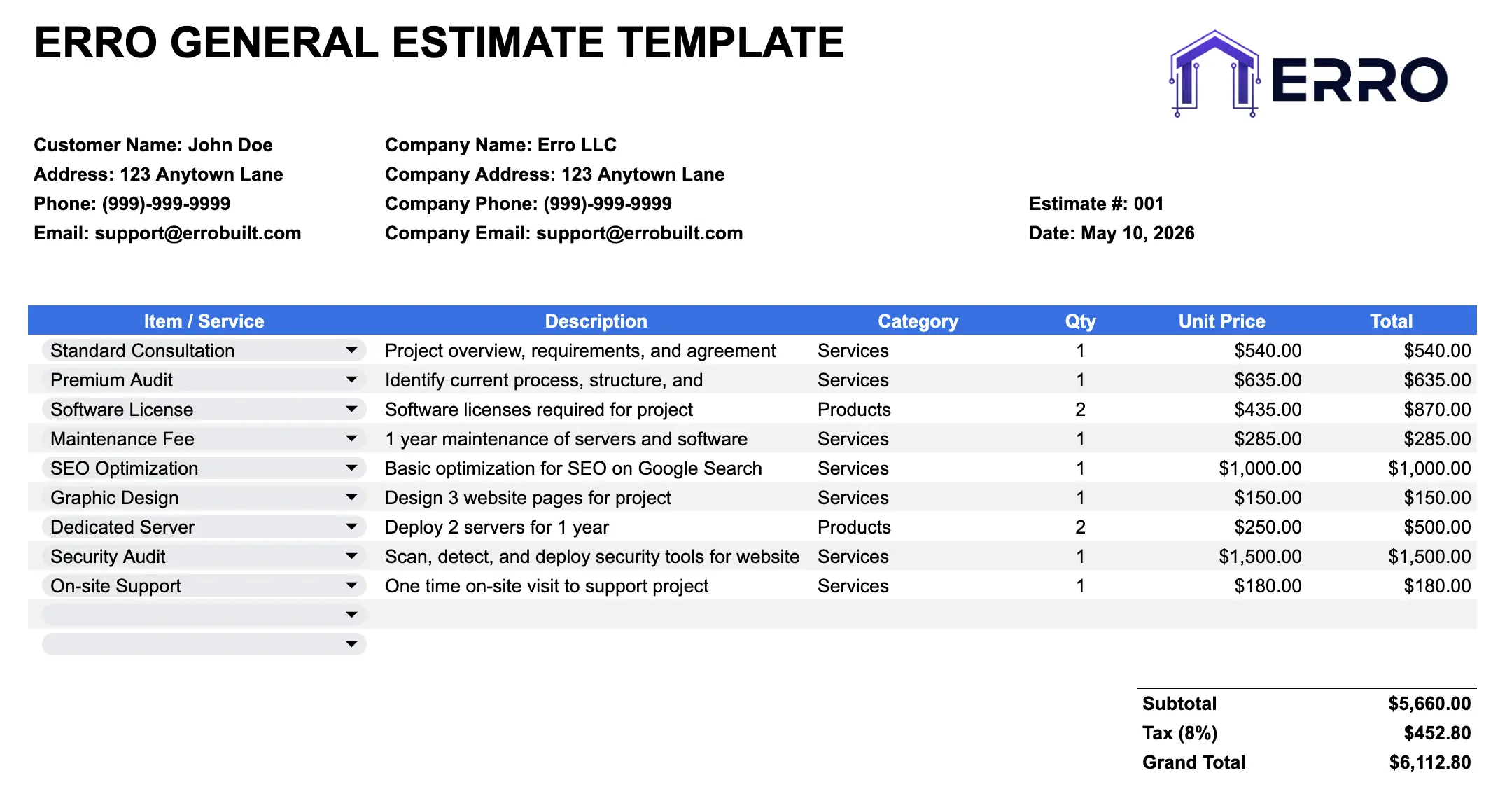
What is an Estimate Template?
An estimate template is a pre-built spreadsheet that helps you quickly create accurate cost estimates for clients. It includes an item library for fast selection, automatic calculations, and professional formatting to streamline your quoting process.
When to Use This Template
Creating quick estimates for client requests
Building accurate cost breakdowns with pricing
Maintaining consistency across multiple estimates
Reusing common line items from your library
What's Included
Core Sections
Client & company information
Date & estimate number tracking
Item library with descriptions and pricing
Estimate section with line-by-line entries
Subtotal, tax, and total calculations
Terms & expiration date
Notes section
Professional Features
Pre-populated item library for quick selection
Automatic price and quantity calculations
Tax calculation built-in
Discount field for adjustments
Professional formatting and branding
Easy navigation between sheets
How to Use This Template (Step-by-Step)
Step 1: Set Up Item Library
Add your common services/products with descriptions and unit prices. Include quantity units (hours, sq ft, etc.) for easy reference.
Step 2: Fill in Estimate Header
Enter your company info, client details, estimate number, and date. These fields auto-populate on the worksheet.
Step 3: Select Items & Enter Quantities
Reference items from your library and enter quantities. Prices automatically pull from the library and multiply by quantity.
Step 4: Review Totals & Add Notes
Verify subtotal, tax, and grand total calculations. Add any terms, conditions, or notes at the bottom.
Step 5: Export & Send
Save as PDF or Excel to send to clients. Print or email directly from the spreadsheet.
Pro Tips for Accurate Estimates
Build a Comprehensive Library
Include all common items upfront so you can create estimates faster using dropdown selections
Use Clear Item Descriptions
Write descriptions that clients understand—include units (hours, sq ft) and any specs needed
Include Quantity & Unit Price
Break down costs clearly: quantity × unit price = line total. Clients appreciate transparency
Set Expiration Dates
Add a validity period (typically 7–30 days) to encourage faster decision-making
Example Use Cases
Contractor & Construction Estimates
Service-Based Pricing Quotes
Product Sales Estimates
Consulting & Professional Services
Frequently Asked Questions
Use the Item Library sheet to add descriptions, units, and pricing. Then select items from this list in your estimates.
Yes! You can override library prices directly in the estimate section for special offers or adjustments.
Yes, enter your tax rate once and it automatically calculates on the subtotal. Adjust per estimate if needed.