Return to All Articles
Article Sections
1. Getting Started
2. Leads
3. Library
4. Sales Template
5. Estimate
6. Proposal
7. Invoice
8. Change Order
9. Organization Management
10. Team Management
View/Manage Organization Memberships
Step-by-step on how to manage your organization memberships.
By Erro Support | 01/25/2026
1. Open Account Settings
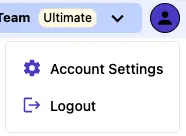
From any page within the Erro app, click on your profile icon or name in the top right corner. This will open a dropdown menu where you can select 'Account Settings' to view and update your account details.
2. Click the 'My Organizations' Tab
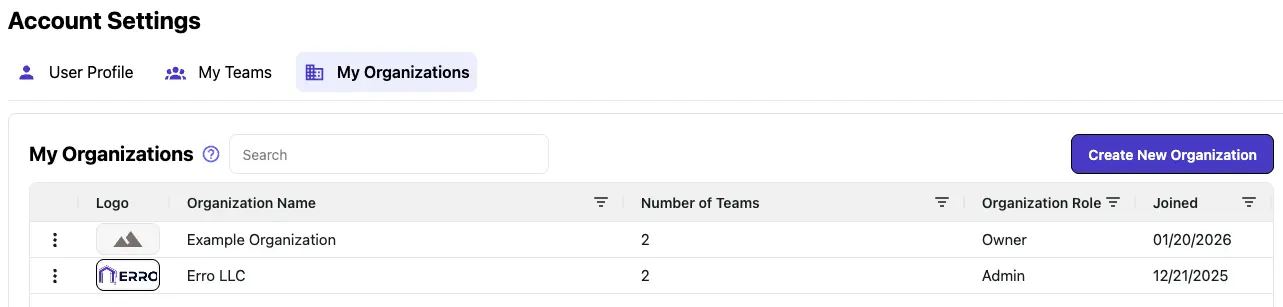
Clicking the 'My Organizations' tab within the Account Settings will allow you to view and manage your organization memberships. It shows you all organizations you are a member of in a grid and provides basic details of each.
3. Leaving a Team
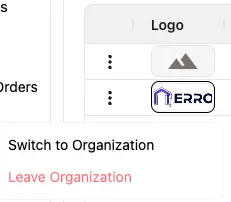
To leave an organization, click the three dots on the organization card you wish to leave and select 'Leave Organization' from the dropdown menu. Confirm your choice in the prompt that appears to successfully leave the organization.
Other Account Management Articles
Explore more articles to help you get the most out of Erro.
Change Account Details
Step-by-step on how to change account details.

Erro Support
View and Manage Team Memberships
Step-by-step on how to manage your team memberships.
Erro Support
View and Manage Organization Memberships
Step-by-step on how to manage your Organization memberships.
Erro Support