Return to All Articles
Article Sections
1. Getting Started
2. Leads
3. Library
4. Sales Template
5. Estimate
6. Proposal
7. Invoice
8. Change Order
9. Organization Management
10. Team Management
Create a Team
Learn how to create a new team step-by-step.
By Erro Support | 01/25/2026
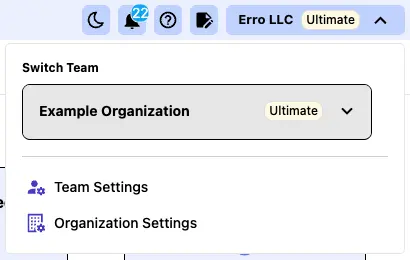
1. Open Organization Settings
From any page within the Erro app, click on the organization name that you are currently viewing in the top left corner. This will open a dropdown menu where you can select 'Organization Settings' to view organization settings.
2. Click the 'Teams' Tab
Click on the 'Teams' tab within the Organization Settings to access teams options.
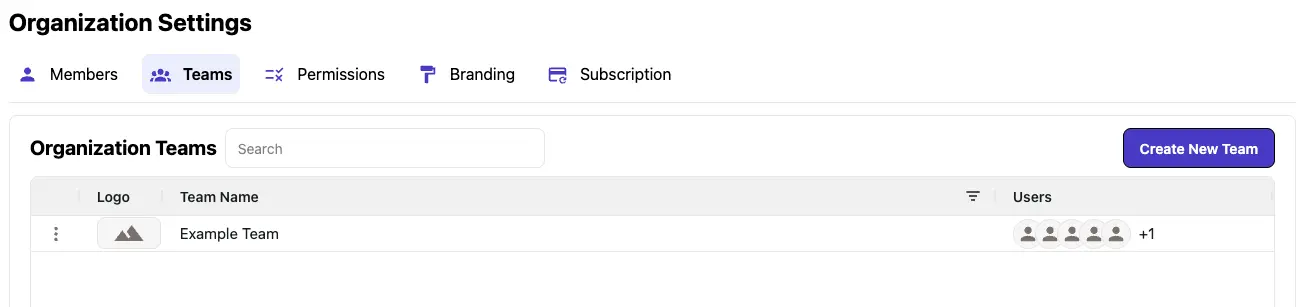
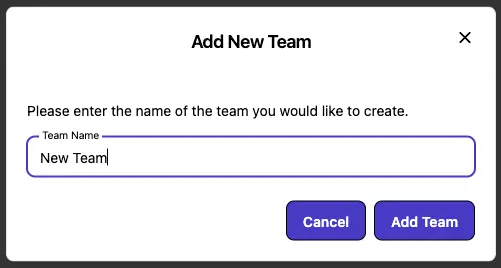
3. Create a New Team
Click on the 'Create New Team' button in the top right corner of the Teams section. Enter a name for your new team and click 'Add Team' to finalize the process.
4. View Your New Team
The team you just created will now show in the teams tab.

5. Customize Your Team
Now that you have a team created, you can customize its settings, add members, and assign roles to manage permissions effectively. View the other articles in the Team Management section for more information on managing your team.
Other Team Management Articles
Explore more articles to help you get the most out of Erro.
Manage Team Permissions
Learn how to manage team permissions and roles.

Erro Support
Manage Team Members
Learn how to add and remove people from your team.
Erro Support
Manage Team Details
Learn how to customize your team details and add branding information.
Erro Support
Turn On Internal Approvals
Learn what Internal Approvals are and how to enable them.
Erro Support
Turn On Base and Options Pricing
Learn what Base and Options Pricing is and how to enable it.
Erro Support