Return to All Articles
Article Sections
1. Getting Started
2. Leads
3. Library
4. Sales Template
5. Estimate
6. Proposal
7. Invoice
8. Change Order
9. Organization Management
10. Team Management
Create a Change Order
Learn how to create a change order step-by-step. Change orders allow you to modify existing proposals that have already been signed by a client.
By Erro Support | 01/25/2026
1. View Change Orders
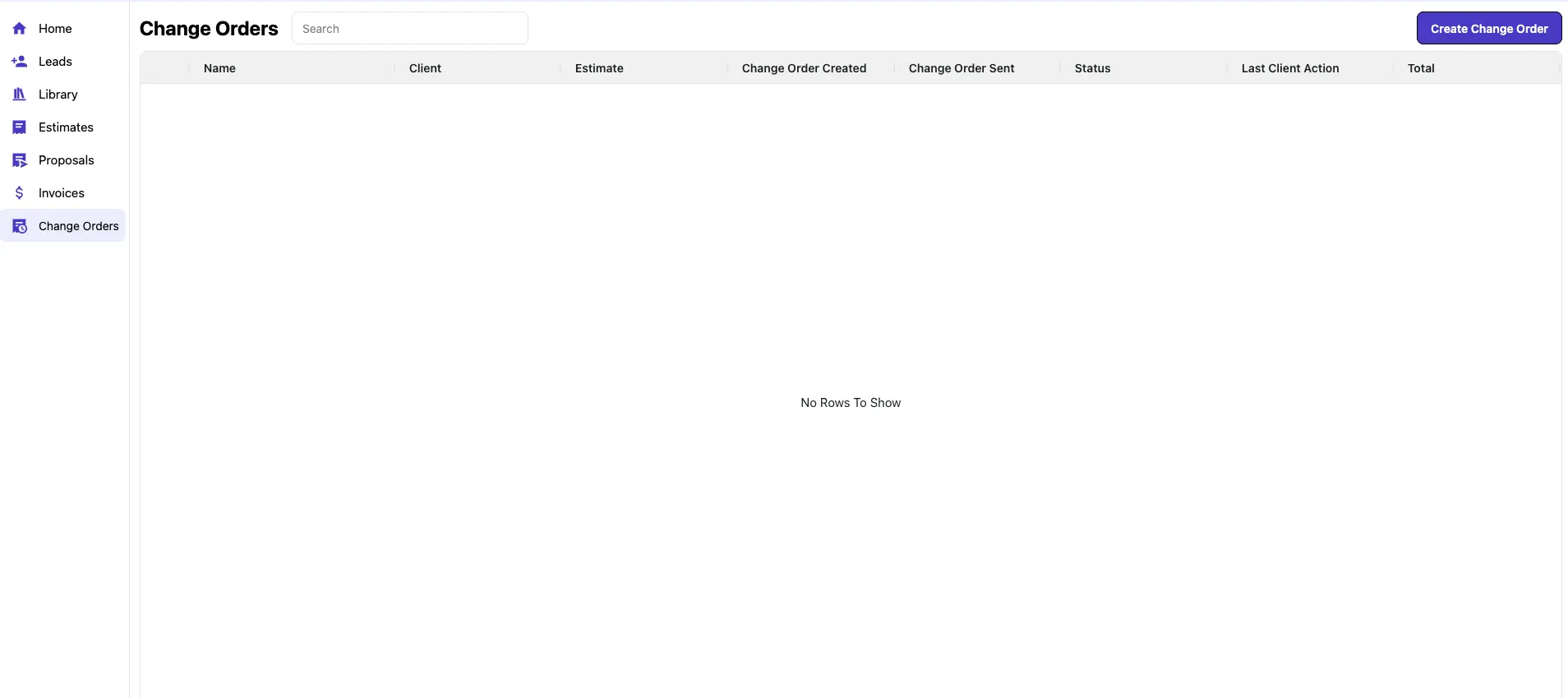
Start by navigating to the change orders section to see all current change orders. If none have been created, this will be empty.
2. Create a Change Order
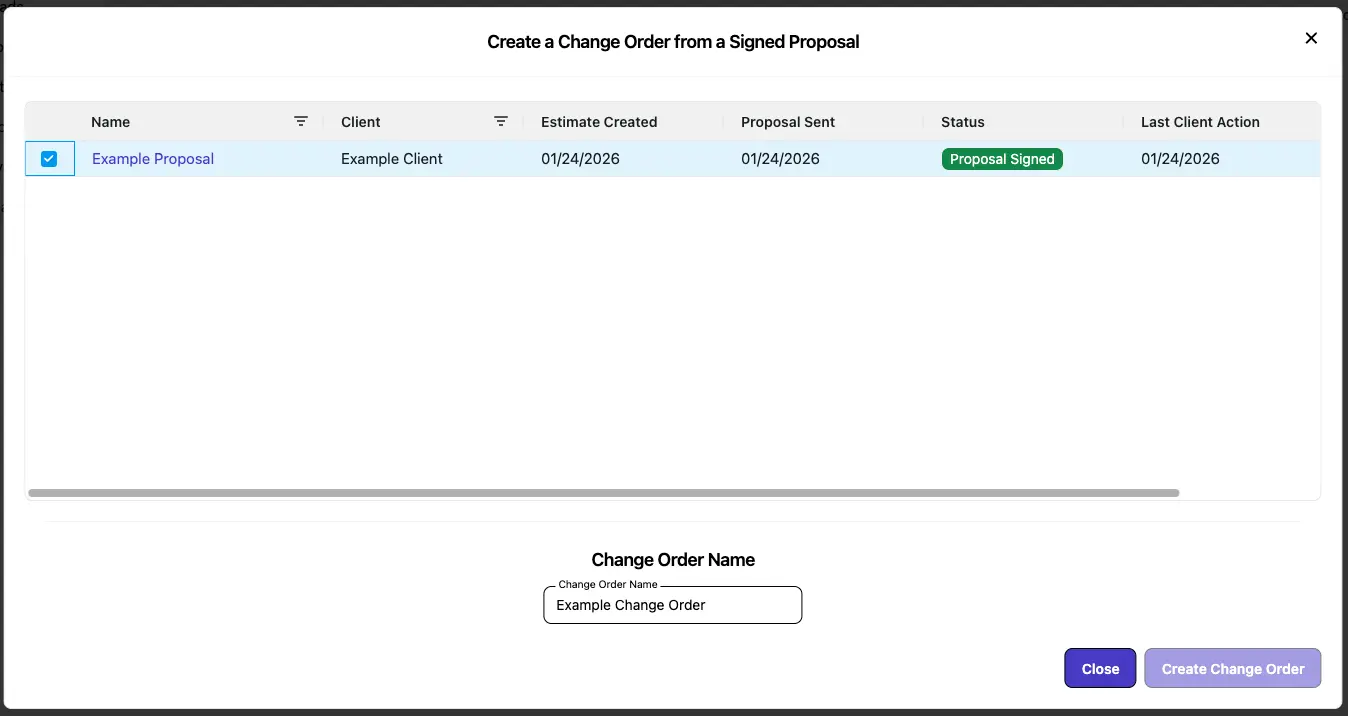
To create a change order, click the 'Create Change Order' button in the top right corner. This will create a pop-up that displays all of the proposals that have been signed and are eligible for change orders. Select the proposal you wish to create a change order for. Enter a name for the change order, and click 'Create Change Order' in the bottom right corner.
3. Make Selections for Change Order
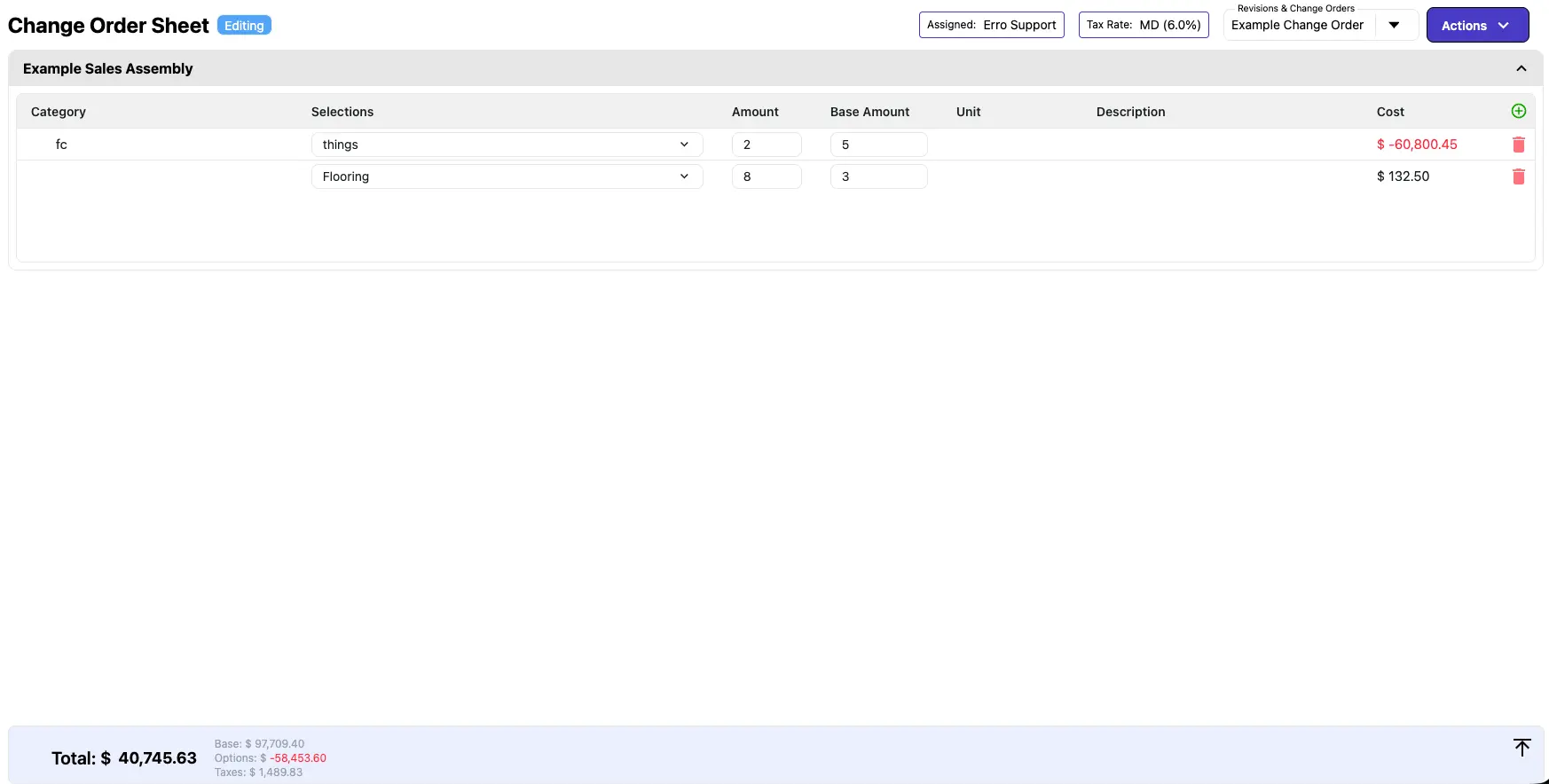
After creating the change order, you will be taken to the change order sheet to make selections. Similar to when you created the original estimate, choose which options, items, and amounts you want to include in the change order.
4. Save Change Order
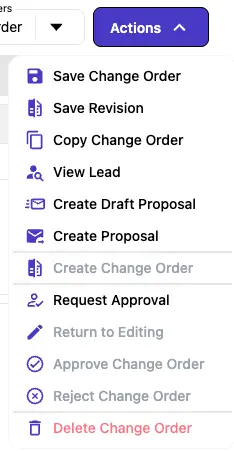
When you have finished, you must save the change order to apply the modifications. Click the 'Actions' button in the top right corner and select 'Save Change Order'. This will finalize the change order and update the associated proposal with the new changes.
5. View Created Change Order
After saving, if you return to the change orders section, you will see the newly created change order listed. It will also show information such as the total amount of cost difference from the original proposal.

6. Once the Change Order has been reviewed and approved, it must be sent to the client for acceptance. To do this, you must create another new proposal for the change order. To learn to do this, view the 'Send Proposal' article.
After saving, if you return to the change orders section, you will see the newly created change order listed. It will also show information such as the total amount of cost difference from the original proposal.